Google Play's 16 KB page size deadline: how to check your app before 1 February 2027
From 1 February 2027, Google Play blocks updates that don't support 16 KB page sizes. Here's how to check your app in ten minutes and fix it.

6 min read
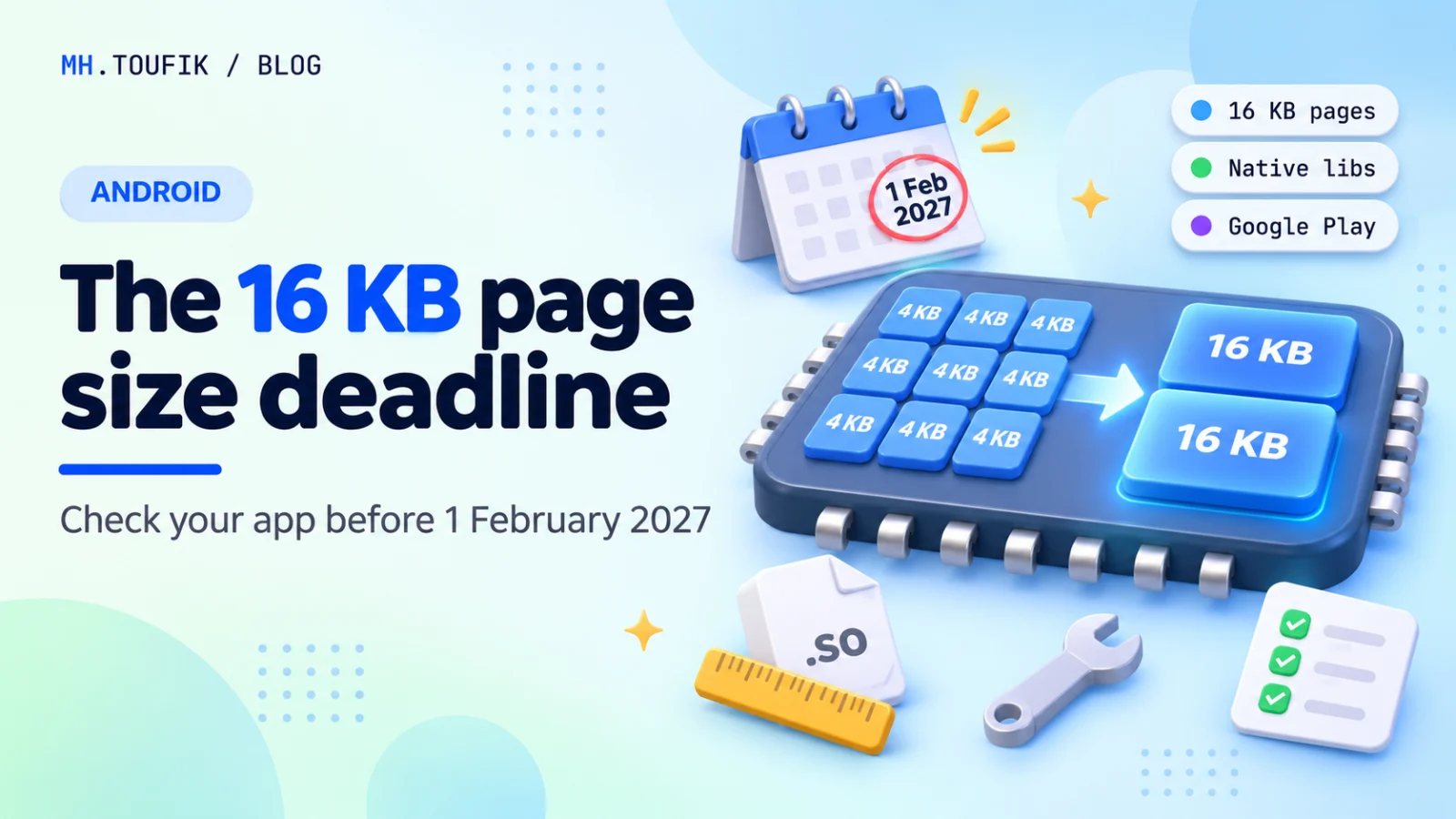
Here's a deadline that's easy to miss: from 1 February 2027, Google Play won't let you release an update if your app doesn't support 16 KB memory page sizes.
That's less than three months away. And the tricky part is that many developers don't know if their app is affected at all. You can write every line in Kotlin and still be caught out by one SDK you added two years ago.
The good news is that checking takes about ten minutes, and fixing it is usually a version bump. Here's how I'd go through it.
What "16 KB page size" means, in simple words
Your phone's memory is split into small blocks called pages. For years, Android used 4 KB pages. Newer devices can use 16 KB pages instead.
Bigger pages mean the system spends less time managing memory. In Google's own tests, that gave:
- app launches about 3% faster on average under memory pressure, and up to 30% faster for some apps
- about 4.5% less power used during app launch
- camera starts about 4.5% faster (hot) and 6.6% faster (cold)
- phones booting about 8% faster, close to one second
Google says real devices will vary, but you get the idea. This is where Android is going.
The problem is native code. A native library (a .so file) that was built for 4 KB pages may not load properly on a 16 KB device.
The date
From Google's documentation:
- Apps targeting Android 15 (API 35) and higher must support 16 KB page sizes on 64-bit devices.
- Starting 1 February 2027, app updates that don't support it can't be released on Google Play.
Your current users keep the version they have. But you lose the ability to ship fixes, which is worse than it sounds when a crash report comes in on a Friday night.
Step 1: does your app even have native code?
This is the first question, and for many apps the answer ends the whole job.
Google says that if your app only uses Kotlin or Java, including all of its libraries and SDKs, it already supports 16 KB devices.
That last part matters. You might not write any C or C++, but an SDK you depend on might. Image and video tools, databases, maps, ads, crash reporting and game engines often ship native code inside them.
The quickest way to know for sure:
- In Android Studio, open Build → Analyze APK… and pick your release APK.
- Look for a
libfolder. - If there's no
libfolder, or it has no.sofiles, you have no native code. You're done (but still test, see Step 4).
If you do see .so files, look inside lib/arm64-v8a. That's the folder that matters most here.
Step 2: check if the libraries are aligned
Having native code isn't a problem by itself. The libraries just need to be built with 16 KB alignment.
The easy way: the same APK Analyzer screen has an Alignment column. Misaligned .so files show a warning there. Recent versions of Android Studio and lint also warn you about this on their own.
From the terminal, Google gives a script called check_elf_alignment.sh that checks every arm64-v8a library in an APK:
check_elf_alignment.sh app-release.apkEach library comes back as ALIGNED or UNALIGNED.
You can also check the APK's zip alignment with zipalign from Build Tools 35 or newer:
zipalign -c -P 16 -v 4 app-release.apkIf it prints Verification successful, you're fine.
And if you ship an App Bundle, you can ask bundletool:
bundletool dump config --bundle=app-release.aab | grep alignmentYou want to see PAGE_ALIGNMENT_16K.
Step 3: fix what's broken
Most fixes are boring, which is good.
1. Update the Android Gradle Plugin. With AGP 8.5.1 or higher, uncompressed native libraries are aligned to 16 KB by default. If you're on an older AGP, this alone may fix it.
2. Update the NDK if you build native code yourself. NDK r28 and higher builds 16 KB-aligned libraries by default. If you're stuck on r27 or older, add these linker flags. In CMake:
target_link_options(${CMAKE_PROJECT_NAME} PRIVATE
    "-Wl,-z,max-page-size=16384"
    "-Wl,-z,common-page-size=16384")
Or in Android.mk:
LOCAL_LDFLAGS += -Wl,-z,max-page-size=16384 -Wl,-z,common-page-size=163843. Update your SDKs. This is the step people forget. If a third-party library ships an old .so file, no Gradle setting will fix it. Check each SDK's release notes for 16 KB support and update. If an SDK has no 16 KB version yet, that's the time to ask the vendor or look for a replacement.
4. Look for hard-coded page sizes in your C/C++ code. Code that assumes a page is 4096 bytes will break. Use getpagesize() or sysconf(_SC_PAGESIZE) instead. Google also notes that PAGE_SIZE is undefined in 16 KB mode on NDK r27 and higher, so code that uses it may not even compile.
If you can't update AGP right now, there's a fallback: package native libraries compressed.
android {
    packaging {
        jniLibs {
            useLegacyPackaging = true
        }
    }
}
It works, but your app takes more space once it's installed, and installs can fail on phones with little storage. Treat it as a short-term fix, not the real one.
Step 4: test on a real 16 KB setup
Checking files is good. Running the app is better.
On the emulator: in the SDK Manager, open an Android 15 (or newer) section, tick Show Package Details, and install the image called Google APIs Experimental 16 KB Page Size ARM 64 v8a (or the Intel x86_64 one).
On a Pixel: some Pixels have a developer option called Boot with 16KB page size. Google lists the Pixel 8, 8 Pro and 8a (Android 15 QPR1 or newer), the Pixel 9 series (Android 15 QPR2 or newer) and the Pixel 9a (Android 16 or newer).
Either way, check you're really in 16 KB mode:
adb shell getconf PAGE_SIZEIt should print 16384. Then use the app properly. Open every screen that touches native code: the camera, video, maps, anything with a database.
If the app has 4 KB libraries, a 16 KB device may run it in a compatibility mode and show the user a warning the first time they open it. That's not something you want your users to see.
My checklist
This is the order I'd work in:
- Open the release APK in APK Analyzer and look for
.sofiles. - If there are none, test once on a 16 KB emulator and move on.
- If there are some, check the Alignment column or run
check_elf_alignment.sh. - Update AGP to 8.5.1 or newer, and the NDK to r28 or newer if you use it.
- Update every SDK that ships native code.
- Search your C/C++ code for
4096andPAGE_SIZE. - Run
zipalignorbundletoolon the final build. - Test on a 16 KB emulator or Pixel, then ship to an internal track first.
For most apps, this is an afternoon of work. The only thing that turns it into a stressful week is starting at the end of January.
If you're also moving to API 36, I wrote a checklist for Android 16 and the Google Play deadline. The two jobs fit well together.
Sources
- Support 16 KB page sizes — Android Developers
- Behavior changes: all apps (Android 15) — Android Developers
Keep reading
All posts
Building an Android alarm that actually rings: what HeyUtho taught me
I helped a friend ship HeyUtho, a math-challenge alarm. The math was easy. Making Android ring on time, every time, wasn't. Here's what I learned.
5 min read
Android Studio now works with any AI agent: what Dev Summit 2026 means for us
Android Studio now lets you pick your own AI coding agent, and AppFunctions is in beta. What Android Dev Summit 2026 means for everyday Android work.
3 min read
Android 16 and API level 36: what the Google Play deadline changes
New Play apps and updates must now target Android 16 (API 36), and 16 KB page sizes come next. Here's what changes and a checklist to get your app ready.
4 min read
Comments
No comments yet — start the conversation.